Matt's Markdown Editor
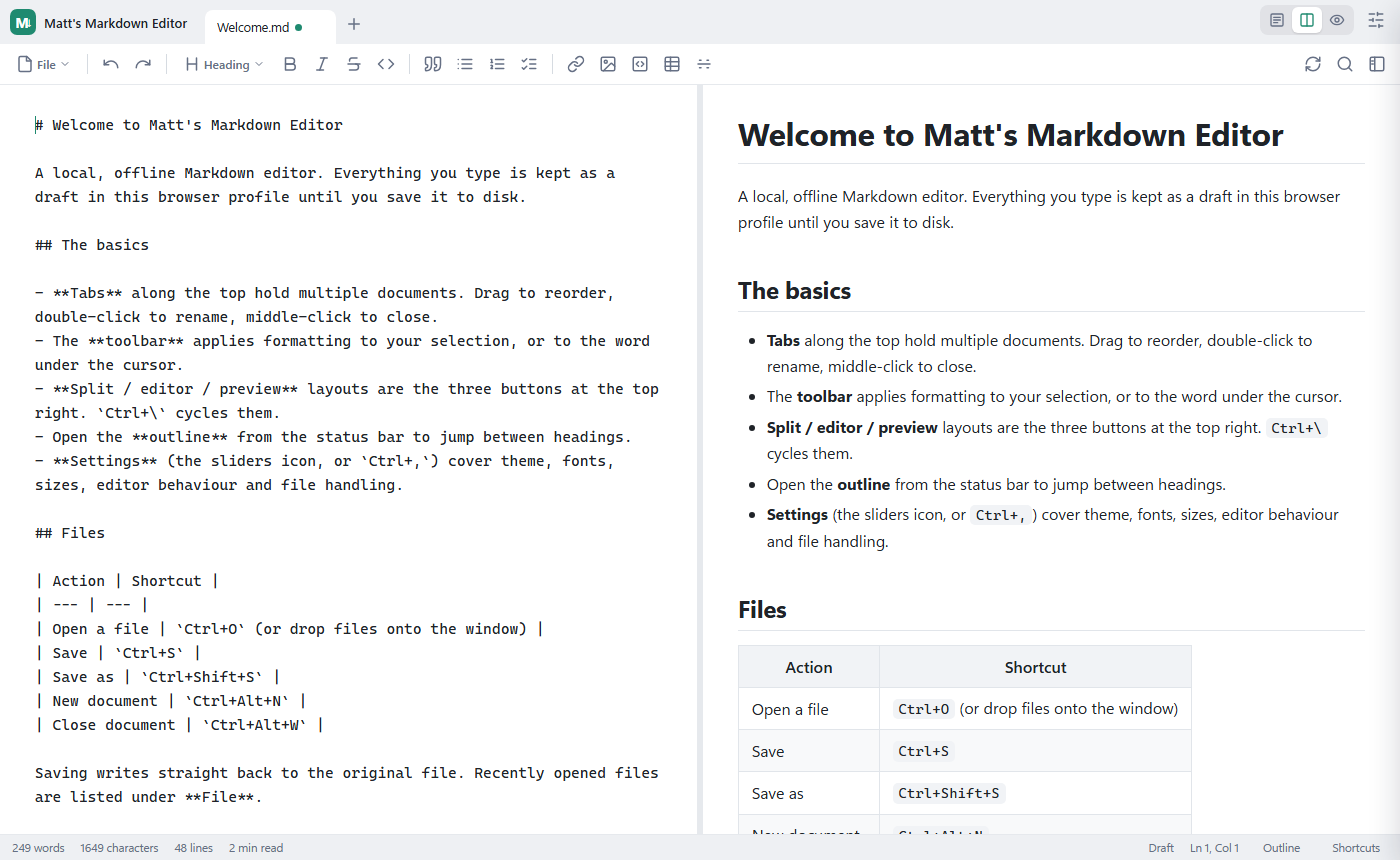
Write on the left, see it on the right. A Markdown editor that opens in a blink, works offline and saves straight back to your files.
Version 1.6 · Needs Python 3 and Chrome or Edge · Setup instructions are below
Why I made it
I write a lot of notes, READMEs and plans in Markdown. Most editors were either a full IDE, which is too much, or a web app that wanted an account, which I didn't want. I wanted to double-click a .md file and be typing within a second, with a proper preview next to it and a Save button that simply saves. So I built one.
What it does
Live split preview
The rendered page updates as you type. Drag the splitter, or switch to editor-only or preview-only with Ctrl+\.
Tabs
Keep several documents open at once. Drag to reorder, double-click to rename and middle-click to close.
Real files
Opens straight from Explorer and saves back to the original file. Open another file and it joins the window that's already running.
Outline and find
Jump between headings from the outline panel. Find and replace works in the editor and in the live preview, with a case-sensitivity option.
Export anywhere
Save as PDF or a Word .docx right next to your file, or straight to Google Drive. You can also export or copy as HTML, copy Markdown, or print.
Stays in sync
A reload button and F5 re-read the file from disk, and it can refresh on its own when another program changes the file, warning you first if you have unsaved edits.
Safe with other editors
If a file is changed on disk while you have it open — by another app or an AI — the editor never overwrites it silently. It offers to keep yours, take the disk version, or merge the two.
Edit in the formatted view
A fourth view lets you edit the rendered document directly, like a word processor — your changes are written straight back to Markdown. The plaintext and split views stay too.
Your width, your way
A width control in the status bar takes the page from narrow and readable to full-screen, so wide tables and side-by-side notes get the room they need.
Never lose a draft
Everything is autosaved as you type. The status bar shows words, reading time, save state and cursor position.
Light and dark
Themes, fonts and sizes live in Settings, and code blocks are syntax-highlighted in both themes.
Toolbar and shortcuts
Headings, lists, links, tables and code are one click or one shortcut away. The Shortcuts button in the status bar lists them all.
What's new
Version 1.6 — 19 October 2026. Code blocks now wrap long lines instead of running off the right edge, and each one has a one-click Copy button that puts its contents on the clipboard with the line breaks intact — handy for the prompts and snippets you keep in a fenced block.
Version 1.5 — 16 October 2026. The formatted editing view now matches the reading view — content is centred with the same fonts and heading sizes — and the rich editor’s own toolbar handles formatting, links and images (including inserting a picture from your PC, embedded straight into the file), while Save, export and the File menu stay put.
Version 1.4 — 16 October 2026. A width slider in the bottom-right corner sets the content width as you drag, and a View / Edit button at the top right flips between reading and editing. New documents open ready to type. The formatted (WYSIWYG) mode is more solid too: the File menu, Save and export stay available while editing, it looks right in dark mode, and formatting acts on the text rather than inserting raw Markdown.
Version 1.3 — 16 October 2026. Formatted (WYSIWYG) editing: a new view lets you edit the rendered document directly, like a word processor, and your changes are written straight back to Markdown. Plus an adjustable content width, from narrow and readable to full-screen, on the status bar and in Settings.
Version 1.2 — 29 September 2026. Safe saving when a file is edited somewhere else. If the copy on disk changed since you opened it, the editor never overwrites it without asking: keep yours, take the disk version, or merge them. Non-overlapping changes merge automatically; genuine clashes are marked for you to resolve. Auto-save and checkbox ticks respect this too, and closing then reopening the app is reliable again.
Version 1.1 — 29 September 2026. Find now works inside the live preview, scrolling to and highlighting each match, not just in the editor. A reload button and F5 re-read the file from disk, with an optional auto-reload for when another program or an AI rewrites the file, and a warning if you have unsaved edits. You can now Save as PDF or Word straight next to your file, or Save to Google Drive. And ticking a checkbox in the preview writes that change straight back to the file.
Version 1.0. First release: live split preview, tabs, real-file open and save, outline, find and replace, export to HTML/PDF/Word, themes and syntax highlighting.
Installing
- Install Python 3 if you don't already have it. The editor runs on it quietly in the background.
- Unzip the download somewhere permanent, for example
%LOCALAPPDATA%\MattsMarkdownEditor. - Right-click
install.ps1and choose Run with PowerShell. It doesn't need administrator rights. It adds a Start menu entry and an “Open with” option, and associates.mdfiles with the editor. - To remove it, run
uninstall.ps1and delete the folder.
SHA-256: 3f229732bf38d53c93ff770e130932ea7d35396a5874d8801999b81ad4113106